
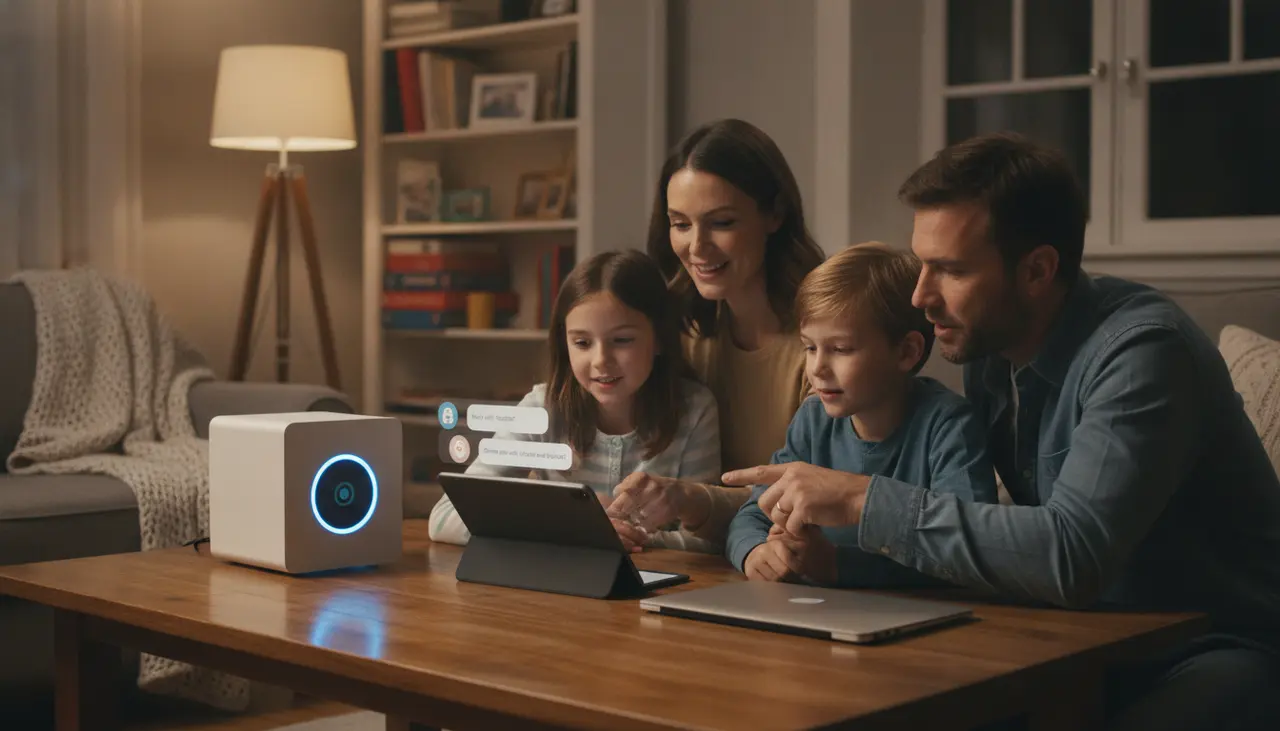
How to Setup Your Own Private 'Family ChatGPT' in 20 Minutes
Between the morning rush of packing lunches and the evening chaos of bedtime stories, the last thing you want to worry about is whether your child’s homework questions or your family’s weekly schedule are being fed into a giant corporate database.
We’ve all seen how helpful AI like ChatGPT can be. It’s a lifesaver for "What can I cook with three wilted carrots and a chicken breast?" or "Explain long division like I’m five." But for privacy-conscious parents, there’s always that nagging feeling: Where is this data going?
The good news? You can now run your own "Family ChatGPT" entirely inside your own home. No subscriptions, no data tracking, and no "big tech" eavesdropping. This is self hosted AI for beginners, and I promise you can get it running in about 20 minutes—less time than it takes to fold a load of laundry.
Why Bring AI Into Your Home?
When we talk about a "Family Cloud," we’re talking about taking back control. By running a local Large Language Model (LLM), you get a private assistant that stays behind your home firewall.
- Privacy First: Your kids can ask questions without a profile being built on them.
- Zero Monthly Fees: Once you own the hardware, the "brains" (the software) are free.
- Speed & Reliability: It works even if your internet goes down.
The Hardware: What You’ll Need to Get Started
To run AI at home, you need a little more "oomph" than a standard office laptop. The "brain" of AI lives in the Graphics Processing Unit (GPU).
If you’re looking for a smooth experience, I highly recommend a PC or a dedicated home server equipped with an NVIDIA RTX GPU (aim for at least 8GB or 12GB of VRAM). These cards are the gold standard for local AI because they handle the complex math of "thinking" much faster than a regular processor.
If you aren't a "build-it-yourself" type, look for pre-built "AI PCs" or powerful Mini-PCs. For a deeper dive into the specific specs that keep a household running smoothly, check out The Family Cloud Master Buying Guide: Secure Your Memories with a Private Home AI Server.
The 20-Minute Setup Guide
We’re going to use a tool called LM Studio. It is the most "parent-friendly" way to get started because it feels just like installing a regular app.
Step 1: Download and Install (5 Minutes)
Head over to the LM Studio website and download the version for your computer (Windows or Mac). Install it just like you would any other program.
Step 2: Choose Your "Brain" (5 Minutes)
Open the app. You’ll see a search bar. This is where you pick which AI model you want to use. For families, I recommend searching for "Llama 3" or "Mistral." These are high-quality, safe models that are great at general tasks. Look for a version that says "4-bit" or "Q4"—these are optimized to run fast on home hardware.
Step 3: Download the Model (5 Minutes)
Click the "Download" button next to your chosen model. Depending on your internet speed, this is a great time to go grab a fresh cup of coffee.
Step 4: Start Chatting (5 Minutes)
Click the "AI Chat" icon on the left sidebar, select your downloaded model from the top dropdown menu, and say "Hello!"
That’s it. You are now running a private AI in your living room.
Real-Life "Parent Hacks" for Your Private AI
Now that it’s set up, how do you actually use it? Here are three ways my family uses our local server:
- The "Homework Bridge": When your 4th grader is stuck on a concept, they can ask the AI for examples. Since it's local, you don't have to worry about them clicking on weird ads or their data being sold.
- The "Fridge Clear-Out": Type in: "I have half a bag of spinach, some feta, and pasta. Give me a 15-minute recipe." It’s a lifesaver on Tuesday nights.
- Tone Checker for Stressful Emails: We’ve all been there—trying to write a polite email to a difficult coach or teacher while frustrated. Paste your draft into your private AI and ask: "Does this sound too aggressive? Help me make it firm but kind."
Moving Beyond the Desktop
Once you get comfortable with local AI, you might find yourself wanting to store more than just text. If you're looking to protect your family's entire digital legacy—including those thousands of photos on your phone—you might want to look into a more robust setup.
A dedicated server can handle your private AI and act as a secure vault for your videos. If you're curious about which hardware can handle that double duty, read our guide on the Best Home Servers for Storing 10 Years of Family Photos (and Keeping Them Private).
Final Thoughts
Setting up self hosted AI for beginners isn't about becoming a computer scientist. It's about building a digital fence around your family. It’s about teaching our kids that technology should serve us, not the other way around.
Give it a try this weekend. You might be surprised at how much peace of mind a little black box in the corner of your office can provide.